 Flix
Guide
How to download your Netflix viewing history
Netflix lets you download your own viewing data in two ways. Both are free and take a few clicks. You need a web browser (on a computer, or your phone’s browser); the Netflix app does not offer downloads.
Simple: download your viewing history
You get a CSV file with every title the profile watched and the date. Each profile has its own history, so repeat these steps for every profile you want to explore.
-
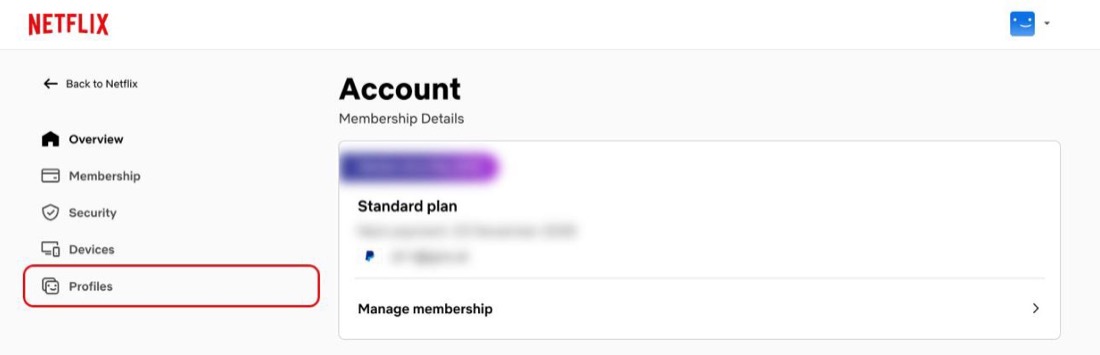
Open your account
Sign in at netflix.com, open Account and select Profiles.
-
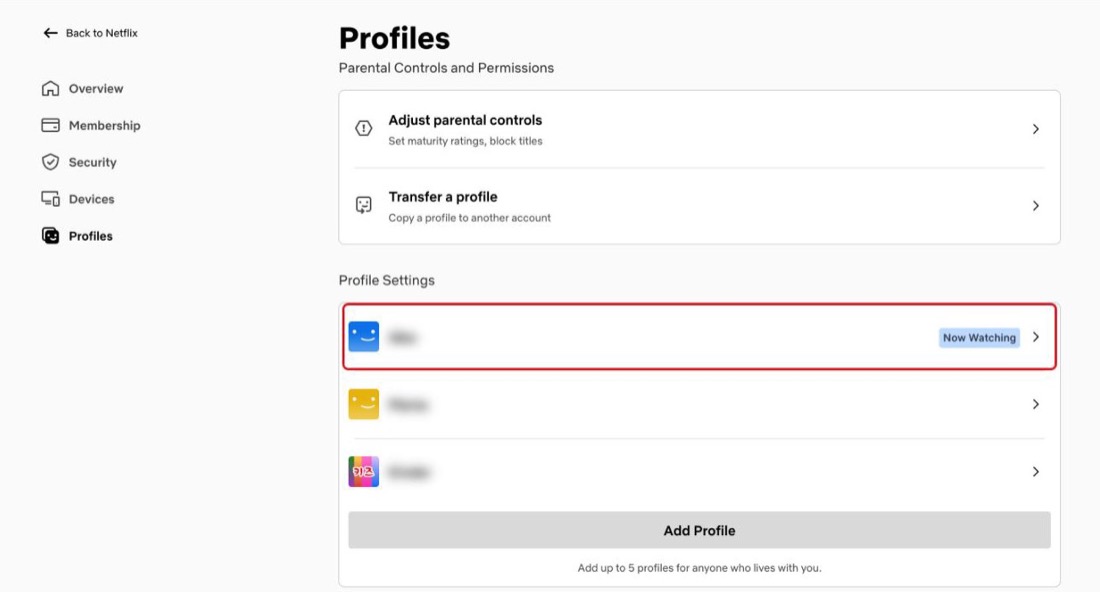
Choose a profile
Select the profile whose history you want.
-
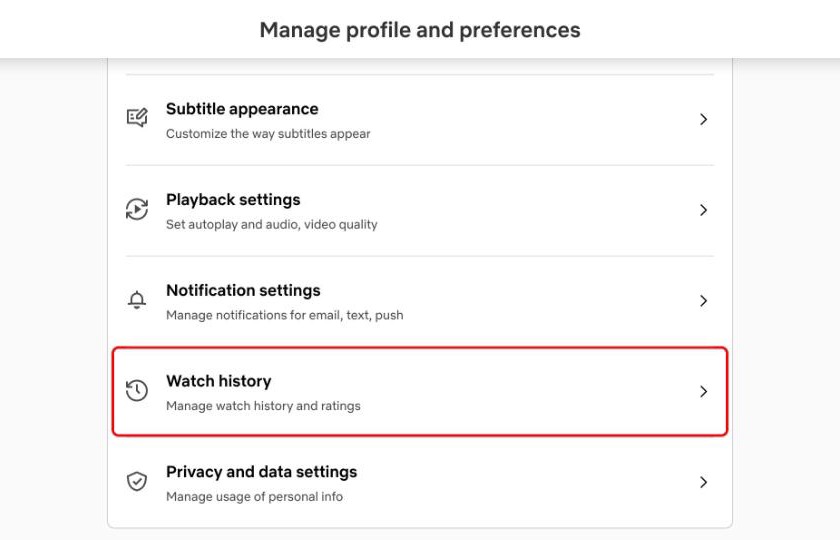
Open “Watch history”
Scroll down and select Watch history.
-
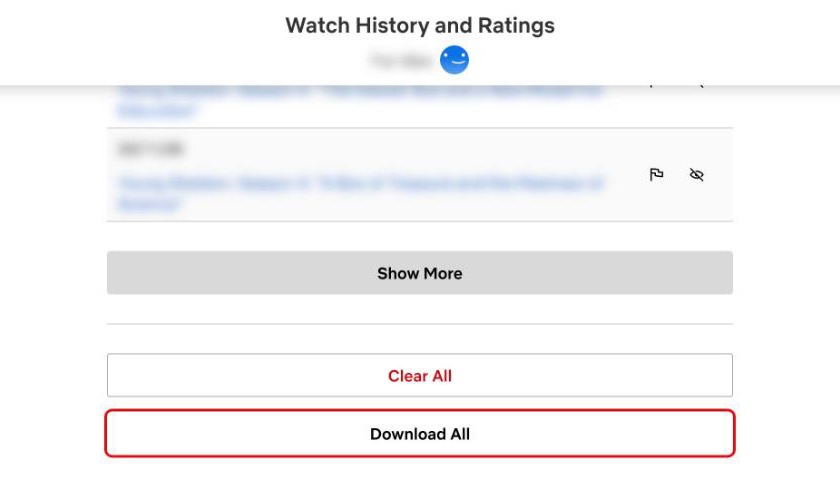
Select “Download All”
At the bottom of the list, select Download All (not “Clear All”). Your browser saves NetflixViewingHistory.csv.
-
Open it here
Go back to FlixStats and drop the CSV into the upload area. The file is read in your browser and never uploaded.
Detailed: request your viewing data
The detailed data contains every playback session with its start time and duration, for all profiles. Only the account owner can request it, and Netflix takes up to 30 days to prepare it — often much less. Request it now and explore the simple history while you wait.
-
Open the request page
Sign in as the account owner and open Download your personal information.
-
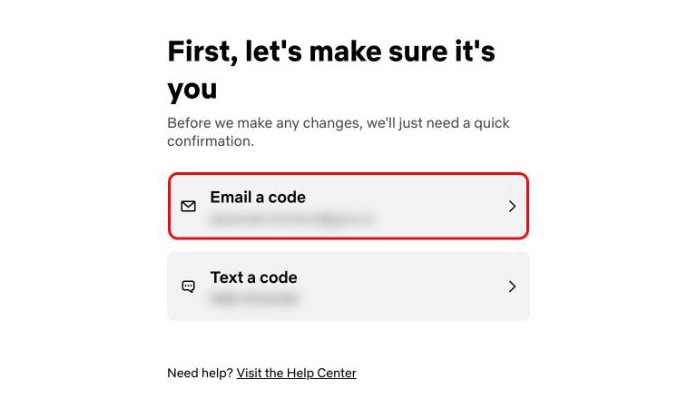
Confirm it’s you
Netflix first sends you a code by email or text message. Enter it to continue.
-
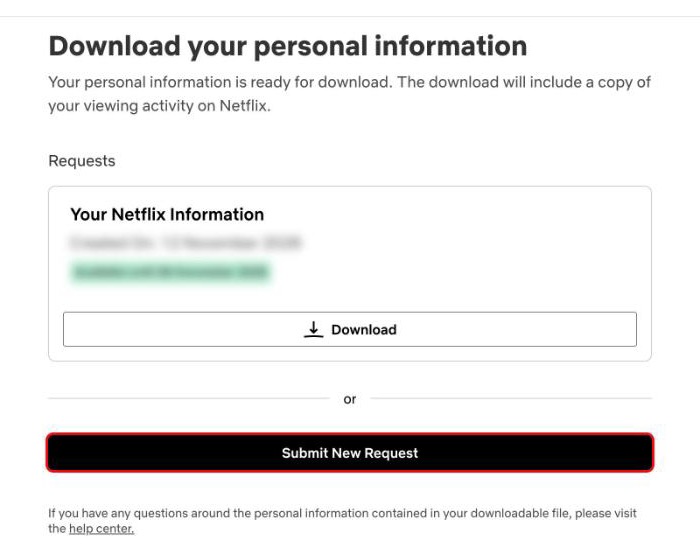
Submit the request
Select Submit Request (it says Submit New Request if you have asked before). If Netflix emails you to confirm, open that email and confirm.
-
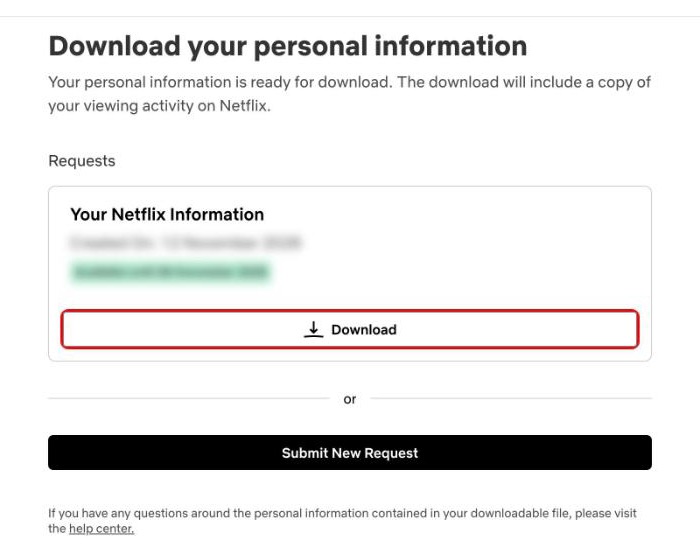
Download the ZIP
When your data is ready, Netflix lets you know by email. Return to the same page and select Download. The file stays available for a limited time (currently two weeks), so download it soon.
-
Open it here
Drop the whole ZIP into FlixStats — there is no need to unzip it. The app finds ViewingActivity.csv inside and lets you choose a profile. Everything stays in your browser.
Something not working?
- No “Download all” button? It only appears in a web browser, not in the Netflix app or on TV.
- Wrong profile? The simple history belongs to the profile you chose in step 1. Go back and pick another one.
- The ZIP is too large? Unzip it and choose ViewingActivity.csv on its own; you can usually find it in a folder called CONTENT_INTERACTION.
Screenshots of netflix.com are shown to explain the steps. Netflix and the Netflix website belong to Netflix, Inc. FlixStats is an independent project and is not affiliated with, endorsed or sponsored by Netflix.